
Implement Email Authentication: SPF, DKIM, and DMARC Setup
Email authentication protocols verify sender identity at the protocol level, preventing attackers from spoofing your domain in phishing campaigns.
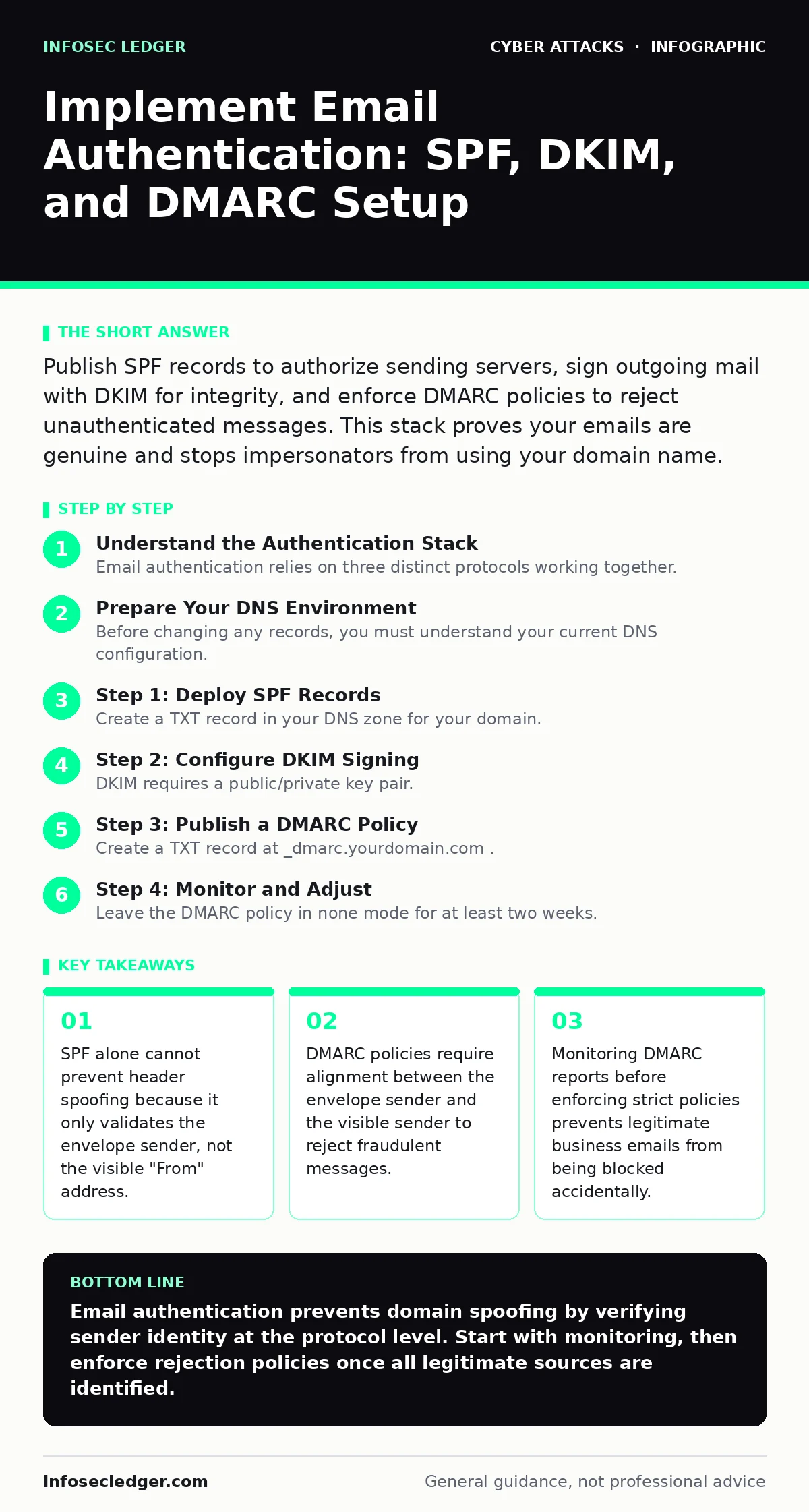
Publish SPF records to authorize sending servers, sign outgoing mail with DKIM for integrity, and enforce DMARC policies to reject unauthenticated messages. This stack proves your emails are genuine and stops impersonators from using your domain name.
Understand the Authentication Stack
Email authentication relies on three distinct protocols working together. They do not encrypt your messages, nor do they hide your content. They prove that an email claiming to come from your domain actually originated from a server you authorized. Without these checks, your domain is open to abuse by anyone who can configure a mail server.
SPF, or Sender Policy Framework, is a DNS record that lists the IP addresses or hostnames allowed to send email for your domain. It acts as a whitelist for your outbound mail infrastructure. DKIM, or DomainKeys Identified Mail, adds a cryptographic signature to your emails. This signature allows the receiver to verify that the message was not altered in transit. DMARC, or Domain-based Message Authentication, Reporting, and Conformance, ties SPF and DKIM together. It tells receiving servers what to do when a message fails these checks.
Prepare Your DNS Environment
Before changing any records, you must understand your current DNS configuration. DNS, or Domain Name System, translates domain names into IP addresses and hosts other records like SPF. If you use a third-party email service, ensure you have administrative access to your domain’s DNS settings. Many business owners outsource DNS management, which can delay updates.
Identify all systems that send email on your behalf. This includes your primary mail server, marketing platforms, CRM systems, and notification services. If you miss a service in your SPF record, those legitimate emails will fail authentication. This failure can cause your customers to miss important invoices or updates.
Step 1: Deploy SPF Records
Create a TXT record in your DNS zone for your domain. The value must start with v=spf1. This declares the record as an SPF version 1 record. List your authorized sending mechanisms using ip4 for IPv4 addresses or a for hostnames. End the record with -all or ~all. The -all tag tells receivers to reject any email not matching the list. The ~all tag suggests soft rejection, which is safer for initial deployment.
To verify this step, send a test email to a Gmail or Outlook account. View the message headers and look for the SPF result. It should read pass. If it reads softfail or fail, your record does not cover the sending IP. Check for duplicate SPF records, as DNS only allows one SPF record per domain. Multiple records cause all checks to fail.
Step 2: Configure DKIM Signing
DKIM requires a public/private key pair. Your mail server holds the private key to sign outgoing messages. You publish the public key in a DNS TXT record. The record name is usually a selector followed by _dkim and your domain. The value contains the public key data provided by your mail service.
This process ensures that the body and headers of your email remain intact. If an attacker modifies the message, the signature will not match the public key. To verify DKIM, check the email headers again. Look for a DKIM-Signature header and a result indicating pass. Some services offer a "test mode" that signs emails without enforcing them, allowing you to validate the setup before going live.
Step 3: Publish a DMARC Policy
Create a TXT record at _dmarc.yourdomain.com. The value must start with v=DMARC1. Define the policy using p=. Use p=none initially. This tells receivers to monitor but not reject failing messages. Set pct=100 to apply the policy to all messages. Add rua= and ruf= tags to specify email addresses for aggregate and forensic reports.
See also: Stop Tailgating: 7 Mistakes That Compromise Physical Security
Step 4: Monitor and Adjust
Leave the DMARC policy in none mode for at least two weeks. During this time, aggregate reports will arrive. Analyze these reports to identify all sources of email for your domain. You may find forgotten services or misconfigured servers sending mail. Add these sources to your SPF record or enable DKIM for them. If you see legitimate traffic failing, investigate why. It could be a misalignment between the envelope sender and the visible sender.
Step 5: Enforce Strict Policies
Once all legitimate sources are authenticated, change the DMARC policy from p=none to p=quarantine. This instructs receivers to send failing messages to the spam folder. Monitor the reports for another week. If no legitimate emails are being quarantined, change the policy to p=reject. This is the strongest setting. It causes receivers to discard any email that fails SPF or DKIM alignment. This effectively stops attackers from spoofing your domain.
Verification Checklist
Use this list to confirm your implementation is correct.
- SPF record exists and lists all sending IPs or services.
- SPF record ends with
-allor~all. - DKIM public key is published in DNS.
- Outgoing emails pass DKIM signature checks in headers.
- DMARC record is published at
_dmarc. - DMARC policy is set to
p=rejectafter monitoring. - Aggregate reports are being received and reviewed.
Maintain Long-Term Security
Email authentication is not a one-time task. Your infrastructure changes over time. When you add a new marketing tool or change hosting providers, update your SPF and DKIM records immediately. If you forget to update SPF, your new emails will fail. If you forget to rotate DKIM keys, you risk exposure if a private key is compromised.
Regularly review DMARC reports. Look for new sources of email or spikes in failure rates. A sudden increase in failures could indicate that an attacker has found a way to bypass your controls. This maintenance is similar to updating your incident response plans to reflect new threats. It requires consistent attention but prevents costly breaches.
Email authentication reduces the risk of social engineering attacks that rely on trusted sender addresses. It does not protect against adversary-in-the-middle phishing where the attacker compromises the user’s session directly. For that, you need multi-factor authentication and user training. Combining these defenses creates a layered security approach.
Key takeaways
- SPF alone cannot prevent header spoofing because it only validates the envelope sender, not the visible "From" address.
- DMARC policies require alignment between the envelope sender and the visible sender to reject fraudulent messages.
- Monitoring DMARC reports before enforcing strict policies prevents legitimate business emails from being blocked accidentally.
Email authentication prevents domain spoofing by verifying sender identity at the protocol level. Start with monitoring, then enforce rejection policies once all legitimate sources are identified.
Frequently asked questions
Can I use SPF and DMARC without DKIM?
Yes, but it is less secure. DKIM provides message integrity, ensuring the content was not altered. Without it, attackers could modify the body of an authenticated email.
How long does it take for DNS changes to propagate?
DNS propagation times vary based on the TTL settings. Changes can take from minutes to 48 hours to update globally. Plan updates during low-traffic periods.
What if I use a third-party email service?
The service provider will give you the specific SPF include strings and DKIM selectors. You must publish these in your own domain’s DNS settings.
Does email authentication protect against spam?
It helps receivers filter spam by verifying sender identity. It does not prevent your own domain from sending spam if your systems are compromised.
How this guide was produced: written by the InfoSec Ledger editorial team with AI assistance, checked against the public references listed below, and reviewed when the facts change. See our editorial policy or report an error.