How Private Browsing Works: The Mechanics and Limits
Private browsing deletes local history but does not hide your activity from networks, websites, or your internet service provider.
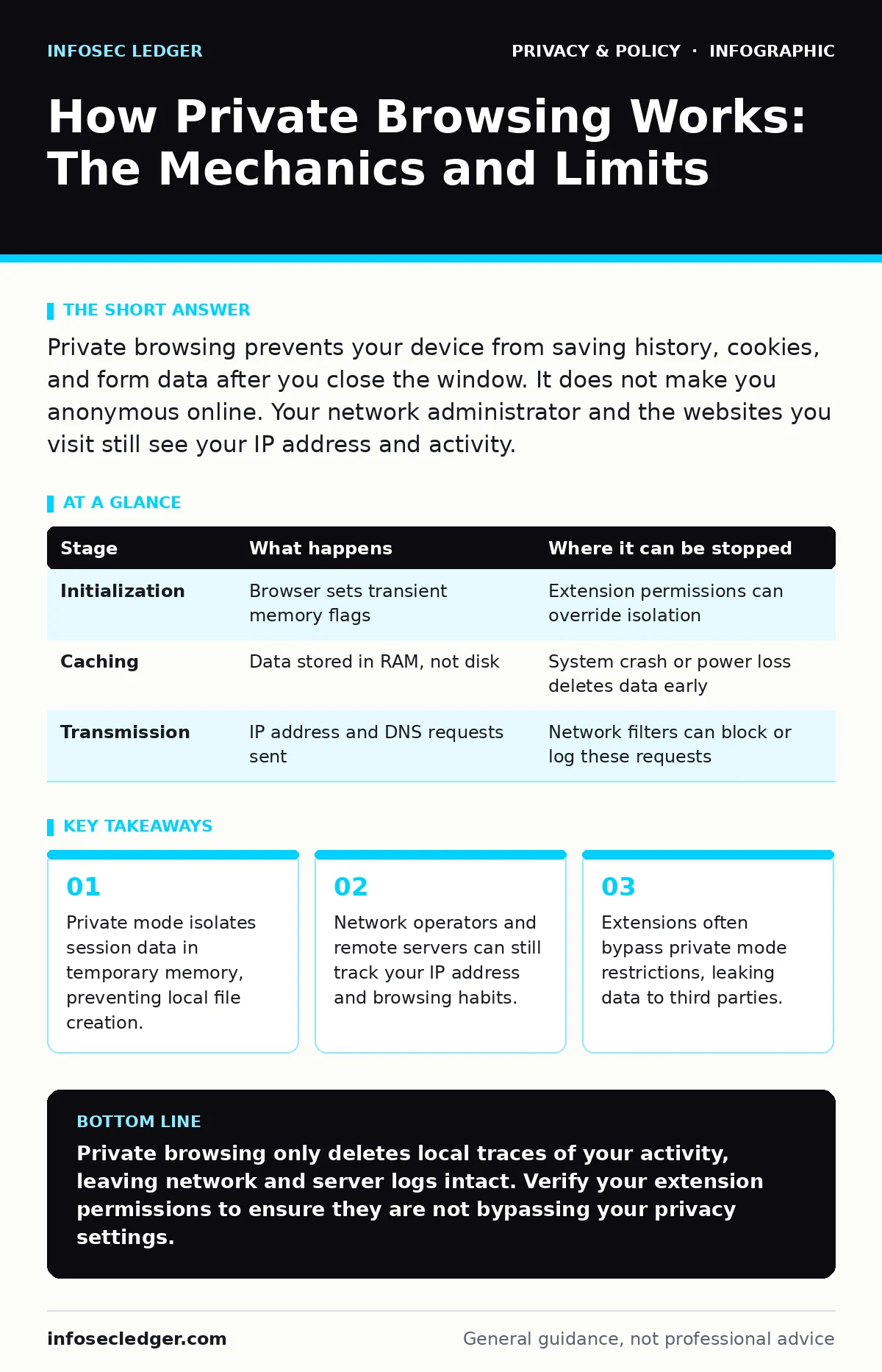
Private browsing prevents your device from saving history, cookies, and form data after you close the window. It does not make you anonymous online. Your network administrator and the websites you visit still see your IP address and activity.
The Architecture of Isolation
Private browsing mode creates a temporary, isolated environment for your web activity. When you open a private window, the browser treats it as a separate session from your regular browsing. This separation prevents the merging of history, cookies, and temporary files between the two modes.
You might assume this mode hides your identity from the internet. It does not. It only manages what stays on your local device. The traffic still travels through the same cables and routers as normal browsing.
This distinction matters for shared devices or public computers. It ensures that the next person using the machine cannot easily see what you visited. However, it offers no protection against network-level monitoring or remote server logging.
Stage One: Session Initialization
Stage 1: Memory Allocation
When you launch a private window, the browser allocates a specific region of RAM for the session. It does not create a new user profile on your hard drive. Instead, it sets a flag that tells the browser to treat all subsequent data as transient.
The browser loads your standard settings and extensions at this stage. Some extensions may request access to private browsing data. If you have granted this permission previously, the extension can still read and modify your traffic within the private window.
This initial state is clean by default. No previous cookies are loaded. No cached images are retrieved from disk. The window starts with a blank slate for each new domain you visit.
Stage Two: Data Ingestion and Caching
Stage 2: Temporary Storage Handling
As you navigate to websites, the browser receives HTML, images, scripts, and cookies. In a normal window, these items are saved to your hard drive to speed up future loading times. In private mode, the browser stores them in volatile memory.
Volatile memory requires power to maintain data. When the window closes, the power to that specific memory segment is effectively cut, and the data is overwritten or discarded. This is the core mechanism of "privacy" in this context.
The browser still renders these assets to show you the page. It executes JavaScript and communicates with servers. It just refuses to write the resulting files to persistent storage.
This process can still be interrupted. If your computer crashes or loses power during the session, the data is lost immediately. If the session ends normally, the browser performs a cleanup routine to ensure no temporary files remain in the system's temp folders.
Stage Three: Network Transmission
Stage 3: Traffic Flow and Visibility
While local data remains temporary, the network traffic is permanent and visible. Every request you send travels through your router, your internet service provider, and potentially several other nodes before reaching the destination server.
Your IP address is attached to each packet. This address identifies your internet connection, not necessarily your specific device, but it locates you to a neighborhood or building. The website sees this IP address and can log it along with the pages you visit.
Private browsing does not encrypt this traffic by default. If you are not on a secure HTTPS connection, anyone monitoring the network traffic can see the exact URLs you request. Even with HTTPS, they can see the destination domain and the volume of data transferred.
This is why network administrators can still block or monitor specific sites. They look at the IP addresses and domain names, not the local history on your laptop. Your private window changes nothing about this external visibility.
| Stage | What happens | Where it can be stopped |
|---|---|---|
| Initialization | Browser sets transient memory flags | Extension permissions can override isolation |
| Caching | Data stored in RAM, not disk | System crash or power loss deletes data early |
| Transmission | IP address and DNS requests sent | Network filters can block or log these requests |
Stage Four: Extension Interaction
Stage 4: Add-on Behavior Analysis
Browser extensions often operate with deep privileges. Many users do not realize that enabling an extension allows it to inspect, modify, and forward all web traffic, including private sessions.
Some extensions are designed to function in both normal and private modes. If you allowed "Access your data for all websites" during installation, that permission persists. The extension can see your private browsing activity and send it to its servers.
This creates a hidden leak. You believe you are browsing privately, but a weather widget or a grammar checker may be transmitting your browsing habits to a third party. These third parties then build profiles based on your behavior, just as advertisers do in normal mode.
To mitigate this, most browsers allow you to disable extension access in private windows. You must manually configure this setting for each extension. If you do not, the private window is as transparent to those extensions as a normal window.
See also: Cryptojacking Warning Signs: Detect Hidden Mining Before It Costs You
Stage Five: Session Termination and Cleanup
Stage 5: Data Disposal Routine
When you close the private window, the browser triggers a disposal routine. It clears the temporary memory allocated to the session. It deletes any temporary files that may have been created for downloads or updates.
This cleanup is thorough for standard browsing data. History, cookies, site data, and form entries are removed. However, it does not delete files you explicitly downloaded to your hard drive. If you save a PDF, that file remains on your disk.
The browser also clears the cache for that session. This prevents the next user from seeing cached images or scripts from your visit. But it does not remove the digital footprints left on remote servers or network logs.
This stage is the final barrier. Once the window closes, there is no local record of your session. But the external records remain. The website still has your IP. The network still has your traffic log.
The Limits of Local Privacy
Private browsing is a tool for local data management, not a shield for online anonymity. It solves the problem of shared device access. It does not solve the problem of mass surveillance or corporate tracking.
For true anonymity, you need to obscure your network identity. This requires different tools, such as Tor or specific virtual private networks. Even then, your behavior and content can still be analyzed.
Understanding this limit prevents false security. Do not assume that private mode hides your activities from your employer, your internet provider, or the government. It only hides them from the next person who sits at your desk.
Key takeaways
- Private mode isolates session data in temporary memory, preventing local file creation.
- Network operators and remote servers can still track your IP address and browsing habits.
- Extensions often bypass private mode restrictions, leaking data to third parties.
Private browsing only deletes local traces of your activity, leaving network and server logs intact. Verify your extension permissions to ensure they are not bypassing your privacy settings.
Frequently asked questions
Does private browsing hide my activity from my employer?
No. Employers can monitor network traffic and see which websites you visit, regardless of your browser mode.
Can websites still track me in private mode?
Yes. Websites can see your IP address and use other tracking methods like fingerprinting to identify you.
Is private browsing the same as using a VPN?
No. A VPN encrypts your traffic and hides your IP address from the destination site. Private browsing only prevents local data storage.
Do I need to clear my cache manually after private browsing?
No. The browser automatically deletes temporary files and cache when you close the private window.
How this guide was produced: written by the InfoSec Ledger editorial team with AI assistance, checked against the public references listed below, and reviewed when the facts change. See our editorial policy or report an error.